A VPS — virtual private server — is a computer in a data center that you rent by the month. It's always on, always connected to the internet, and it's entirely yours: you decide what runs on it. For roughly the price of two coffees a month you get a machine that can host your website, run a web app, and quietly do work for you around the clock.
Platforms like Vercel or Netlify will host a website for you with less effort — and for a simple site they're a fine choice. But this guide is about the other path: owning your own corner of the internet. Here's the shape of it:
- Why — what a server of your own gives you that platforms don't.
- Rent — get a VPS at Hostinger (or Hetzner, or anywhere) in ten minutes.
- Understand — what “deployment” and “Docker” actually mean, in plain words.
- Deploy — hand the starter project to Claude Code and watch it go live: a landing page + a lead-research app.
- Connect — point your own domain at it and switch on the padlock.
Why a VPS instead of Vercel & friends.
Managed platforms are wonderful right up to the edge of their happy path. They host websites beautifully. But the moment you want something that doesn't fit the template — an app that runs on a schedule, a bot, a database, a tool with its own background jobs — you're either paying for add-ons, fighting limits, or being told no.
Flexibility
A VPS runs whatever you want, simultaneously. One small server can host your landing page, three side projects, an automation that works while you sleep, and the dashboard to control it all. If it runs on Linux — and practically everything does — it runs on your VPS. The starter project in this guide deploys a real website and a real scheduled app side by side, on the same €5 machine.
Ownership
On a platform, you're a tenant. Pricing can change, free tiers can shrink, features can be discontinued, and your project lives inside someone else's rules. On a VPS, the files are yours, the data is yours, and the bill is a flat, predictable number. Nothing scales silently into a four-figure invoice because a post went viral — your server just serves as much as it can, for the same price.
Independence from AWS
Most of the modern internet leans on a handful of cloud giants — above all Amazon Web Services. Vercel, Netlify, and countless apps you use daily are built on top of AWS. That means when AWS stumbles, they stumble too.
And AWS does stumble. In October 2025, an outage in AWS's main us-east-1 region knocked out Snapchat, Reddit, Fortnite, Duolingo, Signal, banking apps, and huge parts of the web for the better part of a day — and platforms hosted on AWS were dragged down with it. In December 2021, the same region failed and took Disney+, Ring, and major delivery services offline for hours. Meanwhile, sites running on independent providers like Hostinger and Hetzner — companies that own and operate their own data centers rather than reselling AWS — kept humming along.
A VPS at an independent provider doesn't make you outage-proof; nothing does. But it takes you out of the single largest point of failure on the internet.
What you give up is having someone else do the babysitting: on a VPS, you are the operations team. The good news — for a small server running a few projects, the operations work is genuinely small, and this guide's starter project automates almost all of it.
Get a VPS in ten minutes.
I'll walk through Hostinger because their setup is the most beginner-friendly I've used — but the steps are near-identical everywhere. Good alternatives: Hetzner (outstanding value, EU data centers, my pick for heavier workloads), DigitalOcean, Vultr, or OVH. Everything in this guide works on any of them.
Pick a plan
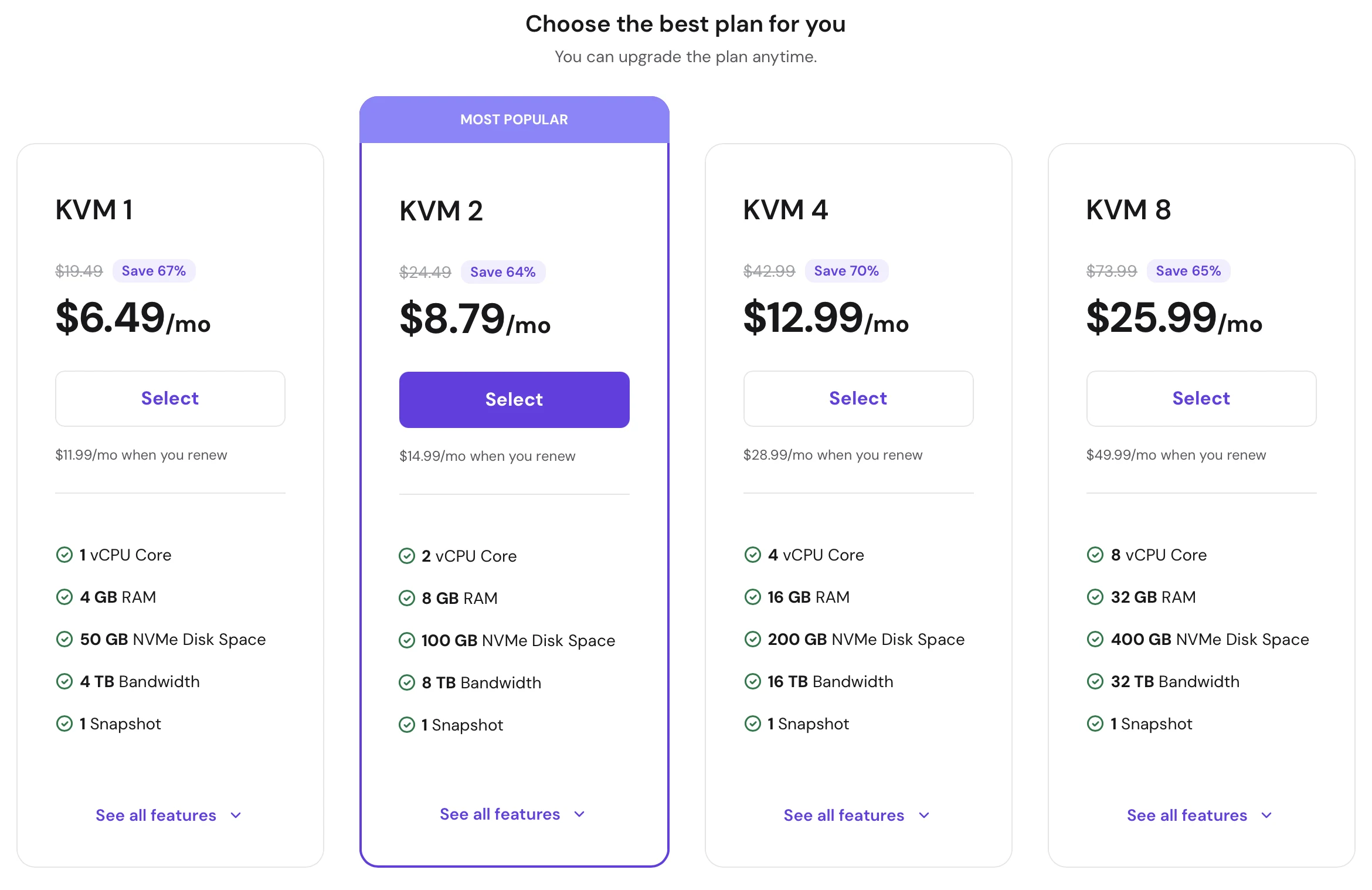
Go to Hostinger's VPS page and pick a small KVM plan — the entry plan (1–2 vCPU cores, 4–8 GB of RAM) is more than enough for the starter project and several more sites on top. Expect to pay roughly €5–8 per month.
Choose your operating system
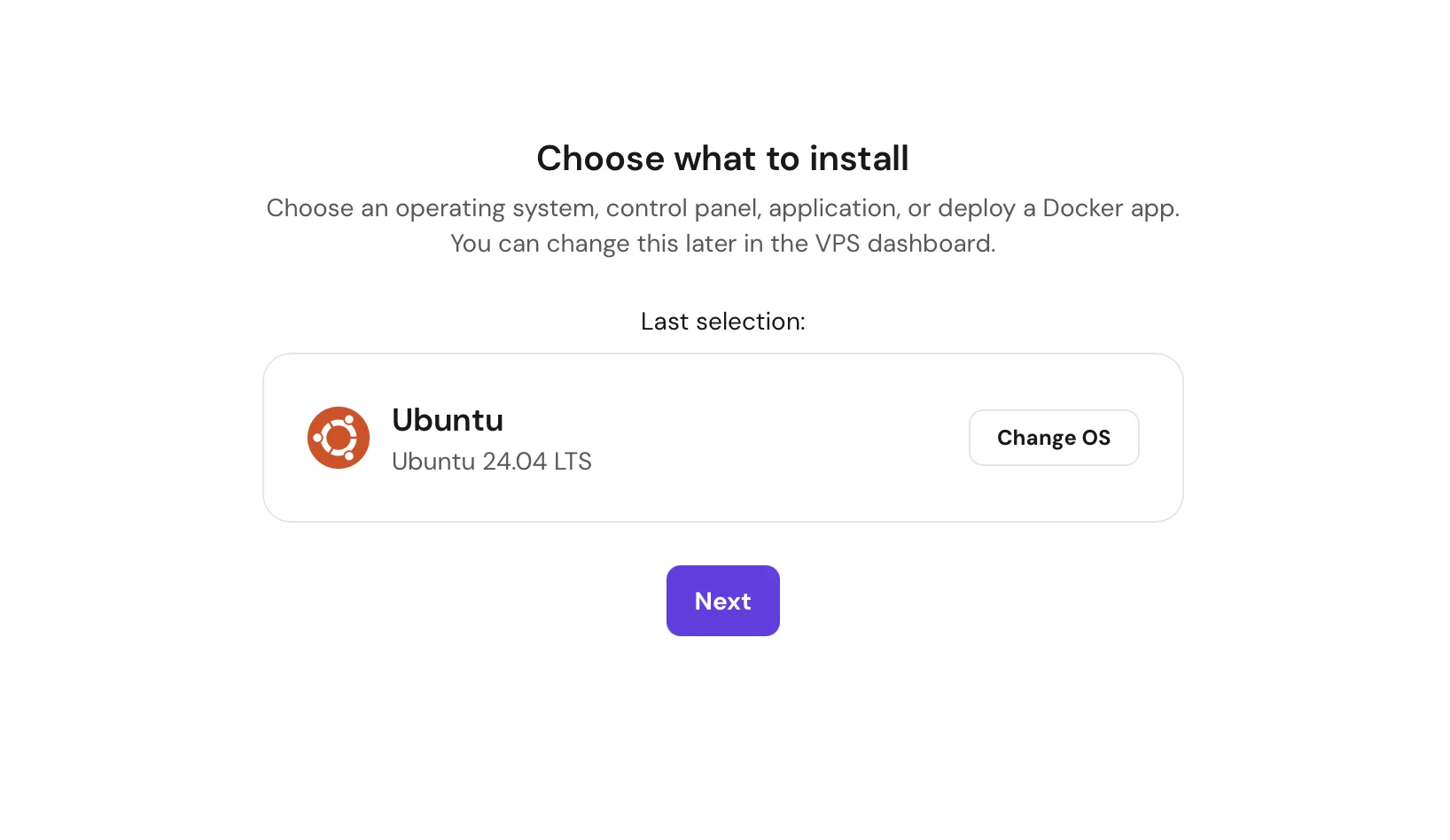
During checkout Hostinger asks which operating system to install. Choose Ubuntu 24.04 LTS — plain Ubuntu, not a panel or an app template. It's the version this guide (and Claude's deployment) assumes. “LTS” means long-term support: it receives security updates for years.
Set a password
You don't need to pick a server location — Hostinger automatically preselects the data center with the best connection for you. Just set a root password: this is the master key to your server. Make it long, make it unique, store it in a password manager.
Find your IP address
A minute or two after checkout, your server appears in the Hostinger panel with an
IP address — four numbers like 203.0.113.42. That's your
server's home address on the internet. Copy it; you'll use it constantly from here on.
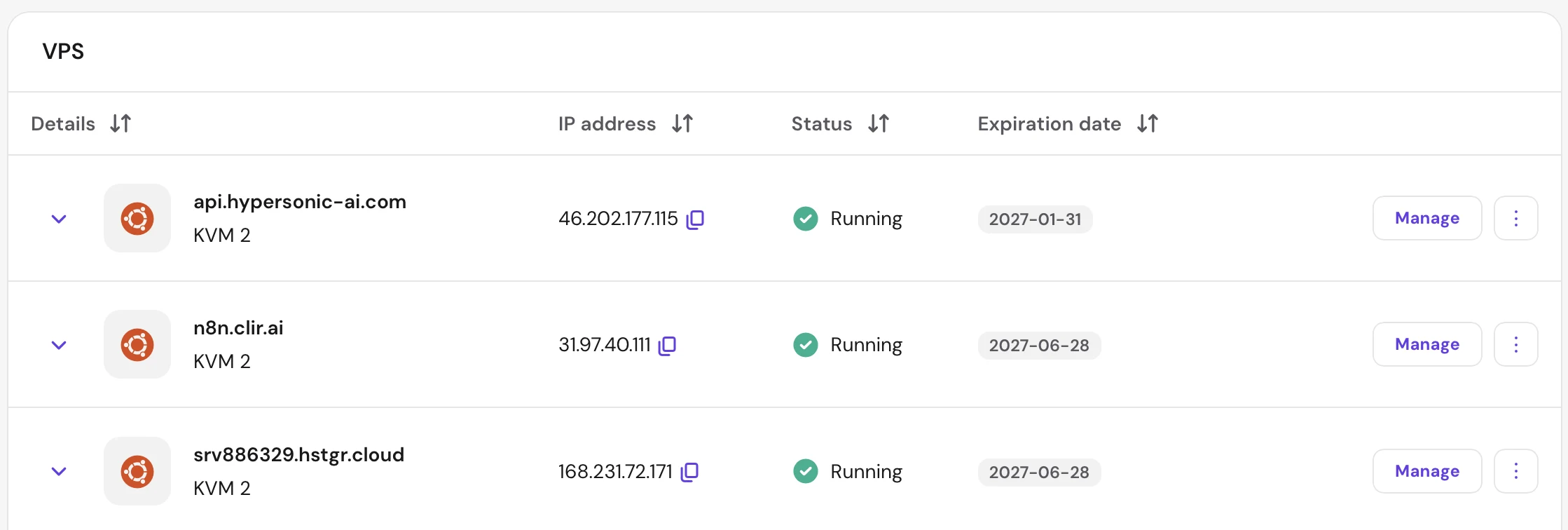
That's all you need from Hostinger: the IP address and the root password you chose. Those two things are the keys you'll hand to Claude in step 04 — you never have to log into the server yourself.
If anything ever goes truly wrong, every VPS provider has a “reinstall” button that wipes the server back to fresh Ubuntu in minutes, and deploying again takes one sentence. Worst case, you start over — nothing on this server exists anywhere else yet.
“Deployment” and Docker, in plain words.
What deployment means
Deployment is simply the act of moving software from where it was built (your laptop, a downloaded folder) onto a computer that's always on — your server — and starting it there so the whole world can reach it. That's it. When someone says “I deployed my site,” they mean: the files are on the server, the software is running, and the URL works.
The old, painful way to deploy was to install everything by hand: the right version of Python, the right web server, the right settings — and to redo that dance on every new machine. The modern way is Docker.
Docker, explained simply
Think of a shipping container. Before containers, loading a cargo ship meant hand-stacking barrels, crates, and sacks — every item handled differently. The container changed everything: pack anything inside, seal it, and every ship, crane, and truck on earth knows exactly how to move it.
Docker does that for software. An app gets packed into a container together with everything it needs — its language, its libraries, its settings. The sealed container then runs identically on any machine that has Docker installed: my laptop, your VPS, anywhere. No “works on my machine” problems, no manual installing.
Our starter project is a small fleet of these containers, described in one file
(docker-compose.yml — the ship's manifest, if you like). It lists three
containers:
- nginx — the receptionist. It answers every visitor that knocks on your server and directs them to the right container: website visitors to the website, dashboard visitors to the dashboard.
- the landing page — a complete, polished one-page website for a fictional local business, served as plain files. It's a real template: swap in your own copy and images whenever you like.
- the lead finder — a small web app that researches potential customers for you on a nightly schedule. Tavily (a search engine built for AI tools) scours the web, Claude qualifies what it finds, and the results land in a password-protected dashboard and straight into a Notion database.
Deployment, then, boils down to one instruction: “Docker, read the manifest and start the fleet.” You won't even type that yourself — in the next step, Claude does.
Ask Claude to put it live.
A complete, ready-to-deploy project, free and open on GitHub: the landing page, the Tavily lead-research app with its dashboard, the nginx setup, and an automated installer Claude runs for you — everything this guide deploys, free to use and modify.
Get the starter kit on GitHubYou won't deploy this by typing commands — Claude Code will do it for you. Claude Code is Anthropic's AI assistant that can actually operate your computer's tools: it reads the project, connects to your server, and does the work while you watch. If you don't have it yet, install the desktop app from claude.com/claude-code — a one-time, ordinary install.
Then it's three steps:
- 1 · Download & unzip. Open the starter kit on GitHub, click the
green Code button, then Download ZIP. Double-click the
zip and you get a
vps-starter-mainfolder. (Know git? Clone it instead.) - 2 · Open it in Claude Code. Open the app and point it at that
folder. The kit ships with a project brief (
CLAUDE.md) that tells Claude exactly how everything fits together — including the deployment procedure. - 3 · Say the sentence. “Deploy this project to my server at 203.0.113.42” — with your real IP from step 02. Claude will ask you for two things: the server's root password (from checkout) and a dashboard password of your choosing. Then it connects, installs Docker, uploads the project, starts everything, and checks that it's live.
Two or three minutes later Claude reports your addresses. Open a normal browser tab and visit them (with your own IP, of course):
http://203.0.113.42— your dashboard, behind the password you just chose.http://203.0.113.42:8080— your landing page, live on the open internet. You just deployed a website.
Configure the lead finder
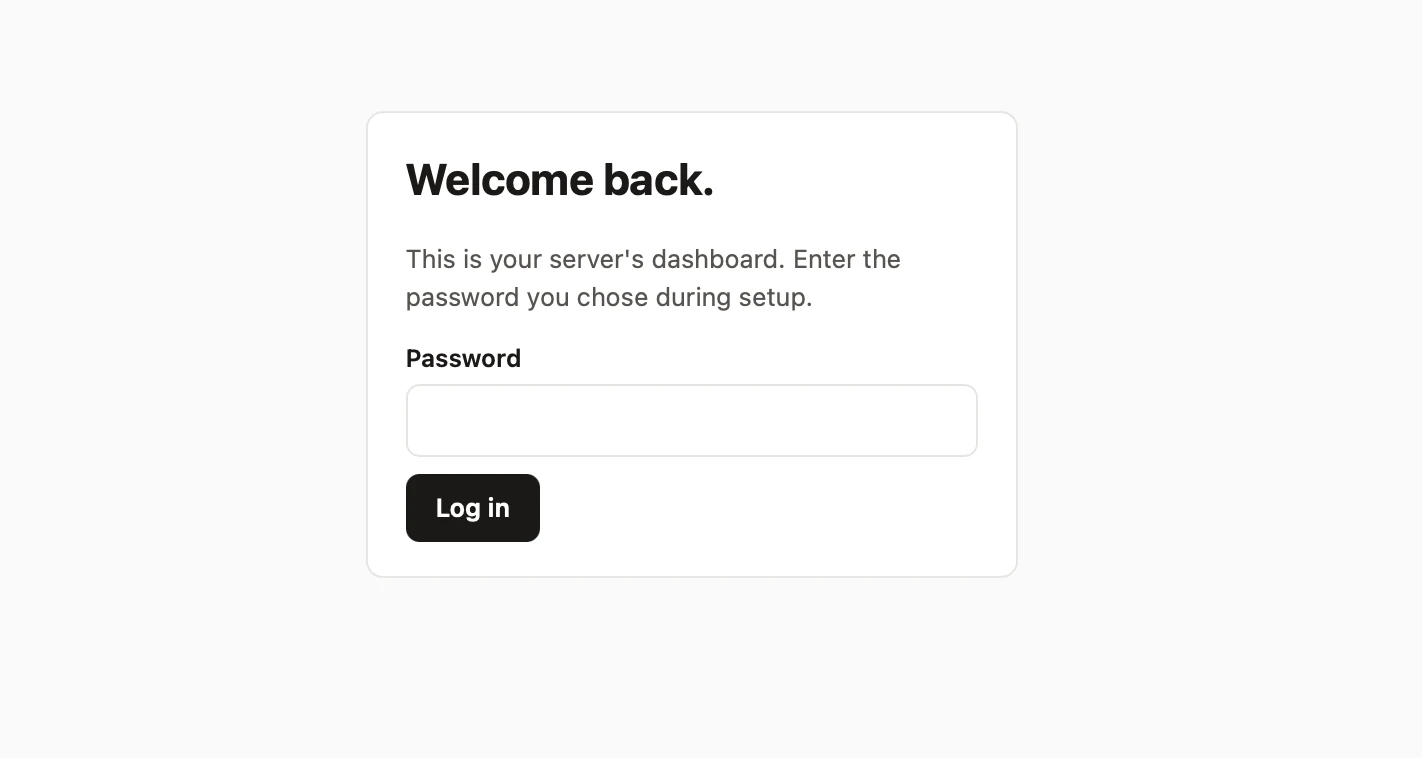
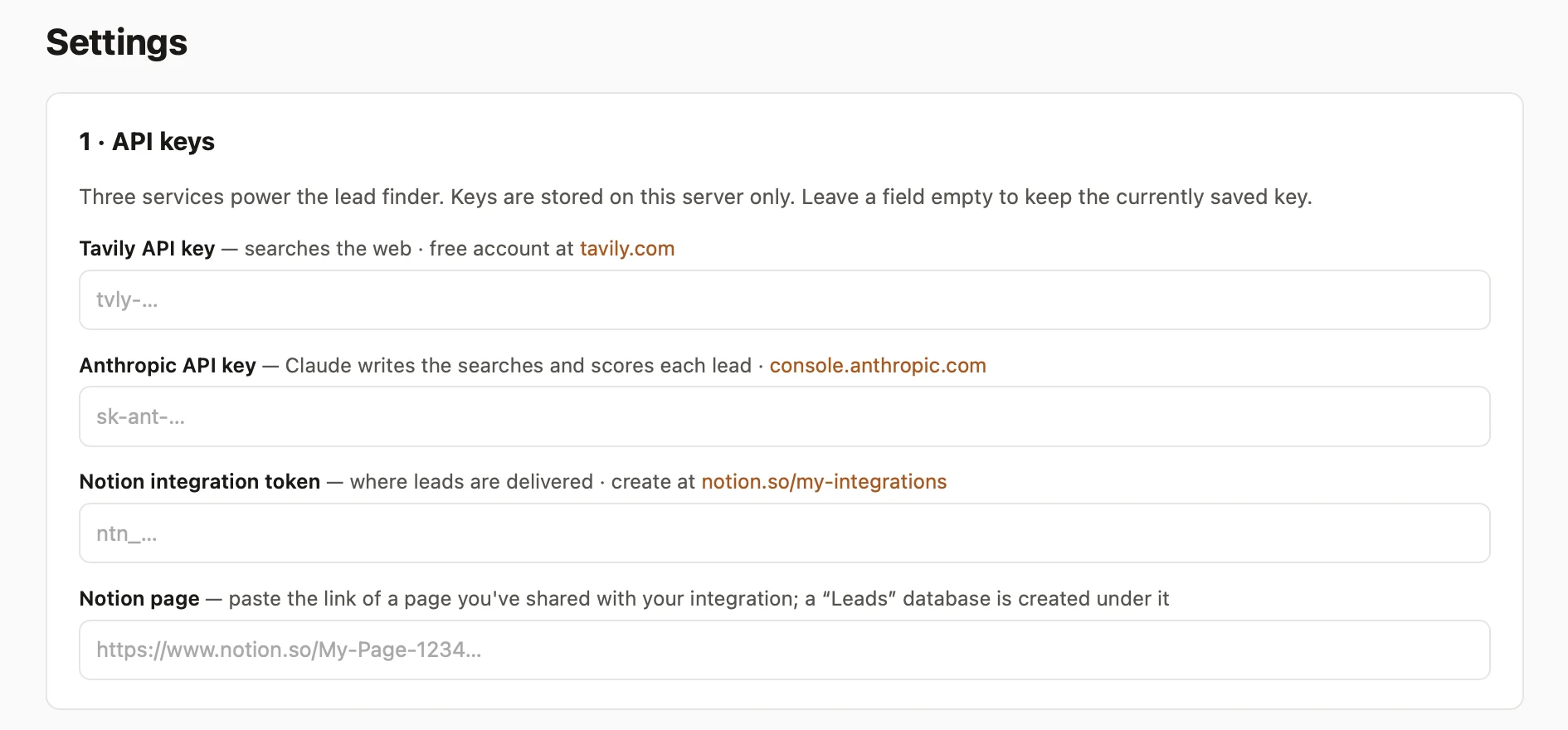
The dashboard's Settings page is where the app's configuration lives — no config files, no terminal. The lead finder talks to three services, so you paste in three keys:
- Tavily — the search engine. Free account at tavily.com; the free tier's monthly credits comfortably cover a nightly run.
- Anthropic — powers Claude, which turns your description into smart searches and scores every lead it finds. Key from console.anthropic.com; a nightly run costs cents.
- Notion — where your leads are delivered, as a tidy database you can sort and work through. Free account; create an “integration” at notion.so/my-integrations and share a page with it — the dashboard walks you through it.
Then describe who you're looking for — your ideal customer, in plain language — and pick the hour the research should run each night.
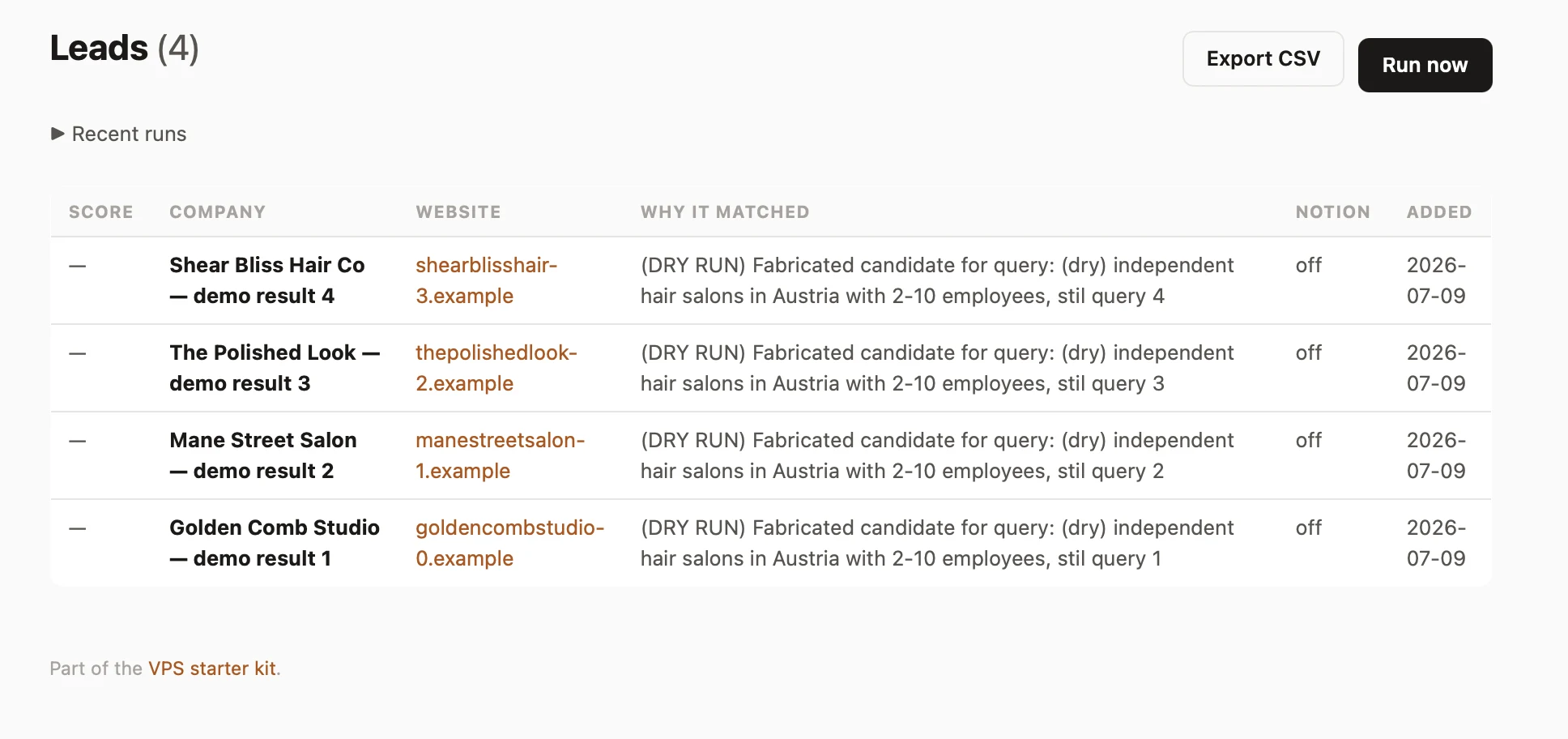
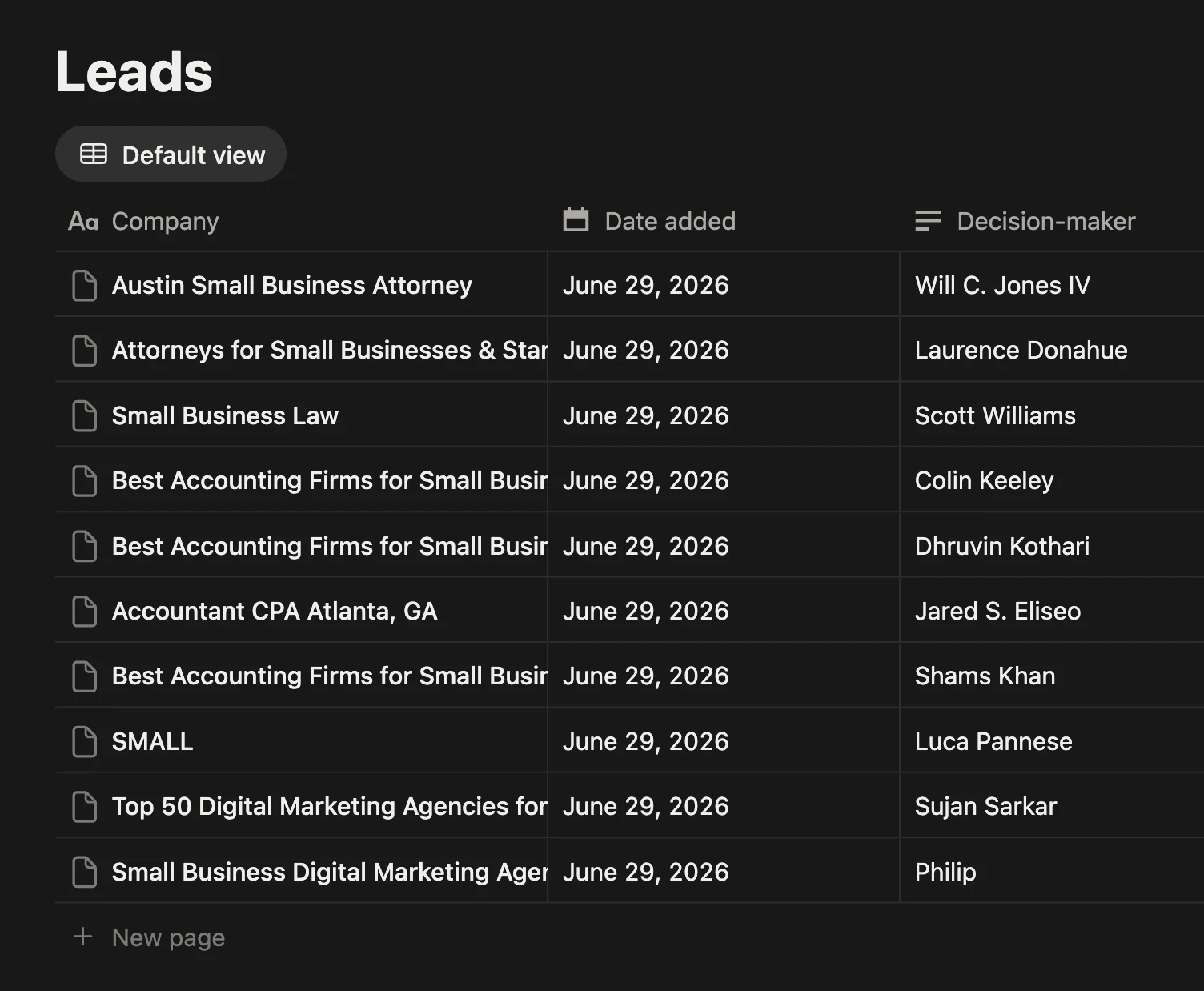
Hit Run now once to watch it work. From then on it runs itself every night: it searches the web for companies matching your description, filters out duplicates, has Claude score each one for fit, and files fresh prospects — name, website, score, and why they matched — into the dashboard's Leads table and into your Notion database, ready to work through over morning coffee.
Look at what's now running on one €5 machine: a public website and an app that does real work on a schedule. That second thing is what the managed website platforms can't give you — and on your own server, it's just another container.
Connect a domain and switch on the padlock.
An IP address works, but yourbusiness.com is what you put on a business
card. Connecting one takes two steps: point the domain at your server, then let the
starter kit fetch a security certificate for it.
Point the domain at your server
Buy a domain anywhere you like (Namecheap, Porkbun, or Hostinger itself). In your registrar's DNS settings, create an A record — the entry that says “this name lives at this address”:
- Type: A · Name:
@· Value: your server's IP - Type: A · Name:
www· Value: your server's IP

DNS changes take anywhere from a minute to a few hours to spread across the internet. Usually it's fast.
Add it in the dashboard
Open your dashboard's Domains page, type your domain, and click Connect. Behind the scenes the kit checks that your DNS points at this server, tells nginx to answer for that name, requests a free certificate from Let's Encrypt, and reloads. A certificate is what turns on https:// — the padlock that tells browsers (and customers) the connection is encrypted. The kit renews it automatically before it expires.
A minute later, https://yourbusiness.com serves your landing page — with
the padlock, on hardware you control, for a fixed few euros a month.
Three habits of a good server owner.
You're the operations team now — here's the entire job description for a server this size:
- Update monthly. Once a month, open the project in Claude Code and say “update my server.” Claude connects, installs Ubuntu's security patches, and tells you what changed. Thirty seconds, no terminal.
- Guard the keys. Your root password and your API keys are the crown jewels. Password manager, never in a chat, never in a screenshot. If a key leaks, rotate it at the provider immediately.
- Keep a copy. Your provider's panel has one-click backups (a few cents a month) — turn them on. And keep the starter kit folder with your edits on your own computer too; with Docker, re-deploying to a brand-new server is a ten-minute job. That's real ownership: the server is replaceable, because everything it runs is yours.
Want this built into your business?
I build private AI systems on infrastructure like this — connected to your tools, owned by you.
Book a consultation call